
|
Overview The Compliance module gives your organisation a live view of how your application estate maps against four European regulatory frameworks: the EU AI Act, GDPR, DORA, and NIS2. Rather than building registers manually, Montro pulls in data from your discovered applications and pre-fills what it can. Your team then reviews, completes the fields that require your input, and exports for audit or regulatory purposes. |
Accessing Compliance
To get to the Compliance section in Montro:
- Go to app.montro.io/login and sign in with your Montro credentials.
- In the left-hand navigation, click on Compliance.
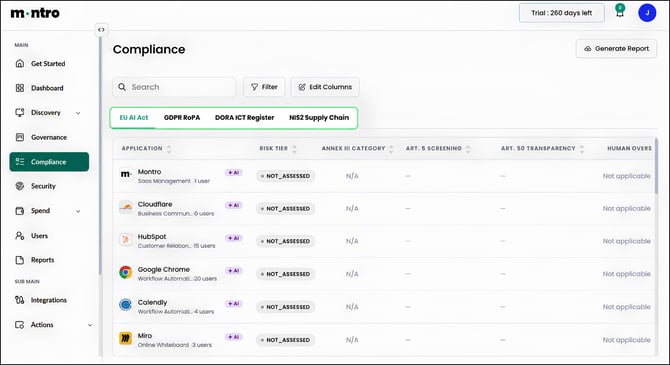
- Use the tab bar to switch between EU AI Act, GDPR RoPA, DORA ICT Register, and NIS2 Supply Chain.
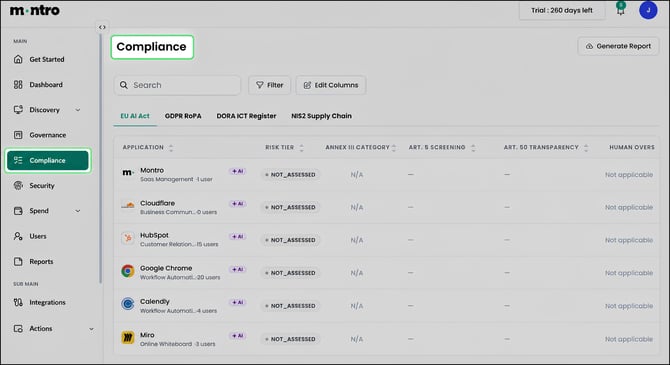
At the top right you will find Generate Report, which exports the current tab as a report for audit or regulatory submission.
Three controls are available across all tabs:
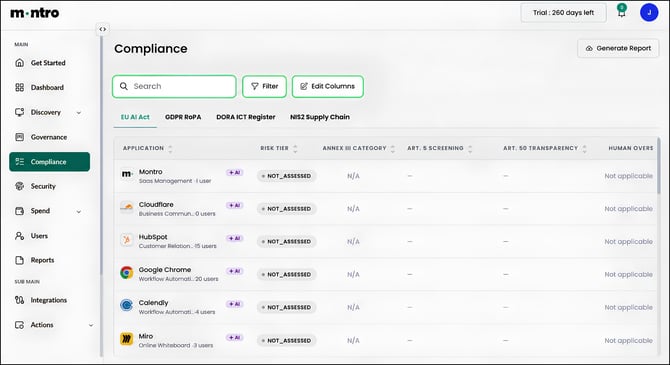
- Search - find a specific application by name.
- Filter - narrow the list by criteria such as risk level or assessment status.
- Edit Columns - show or hide columns to focus on the fields most relevant to your role.
The Four Tabs
Each tab corresponds to one regulatory framework and builds a different type of register.
| Tab | What it produces |
| EU AI Act | An AI system inventory with risk tier classification and deployer obligation tracking |
| GDPR RoPA | A Record of Processing Activities covering legal basis, processors, data subjects, and security measures |
| DORA ICT Register | An ICT Third-Party Register with provider details, criticality, contract data, and data residency |
| NIS2 Supply Chain | A supply chain security register with risk scores, MFA status, certifications, and encryption |
How Montro Pre-fills Data
When an application is discovered, Montro automatically pulls in vendor information from its application catalogue - things like the provider name, sub-processor counts, data residency details, security certifications, and contract data. These fields are populated for you.
Fields that only your organisation can supply - such as the legal basis for processing, the purpose of use, or whether a provider supports a critical function, are left blank for your team to complete.
Generating Reports
Select Generate Report at the top right of any tab to export that register. Use this to support internal audits, regulatory reviews, board reporting, or responses to supervisory enquiries.
Best Practices
- Complete organisation-specific fields as soon as a new application is discovered, do not wait for a scheduled review cycle.
- Use Edit Columns to create a focused view for each role. A DPO working in GDPR RoPA needs different columns visible than someone reviewing the DORA ICT Register.
- Generate and save reports regularly, particularly before key regulatory deadlines.
- Return to each tab after discovery runs to check whether newly found applications have been assessed.