
|
Overview The Contracts page is where you store and manage your vendor agreements. Each contract record is linked to an application in your estate, so you can see exactly what was agreed, with whom, and when it runs out. Keeping this up to date means you are never caught out by an unexpected auto-renewal or an expired agreement that is still in use. |
Accessing Contracts
In the left-hand navigation, click Spend to expand it, then click Contracts.
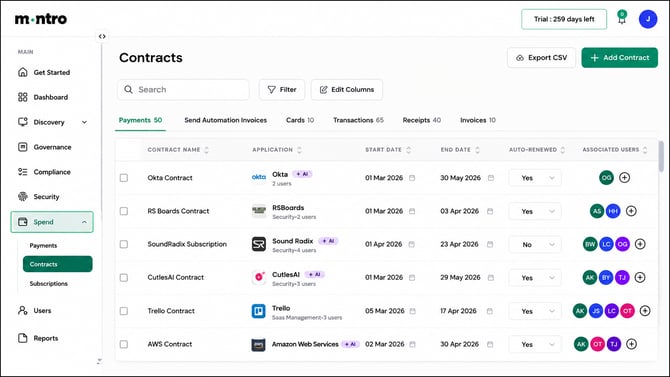
At the top right you will find Export CSV and + Add Contract. Use + Add Contract to create a new contract record manually. Use Export CSV to pull your full contract list for a spend review, audit, or board report.
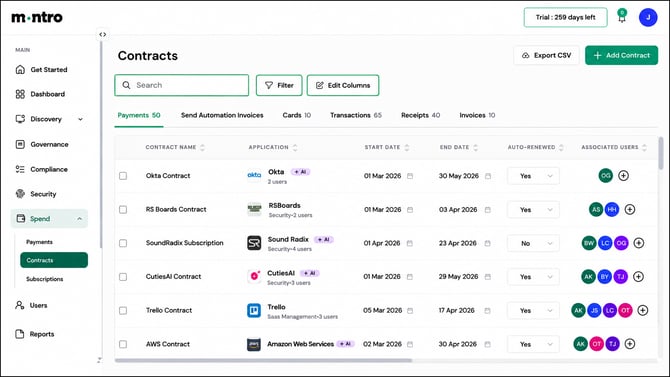
Three controls are available:
Search - find a specific contract by name or vendor.
Filter - useful for narrowing down by status, application, or date range. If you want to see only what has expired or what is set to auto-renew, start here.
Edit Columns - the table is wide. Use this to hide columns you do not need right now and focus on what matters.
What You Will See
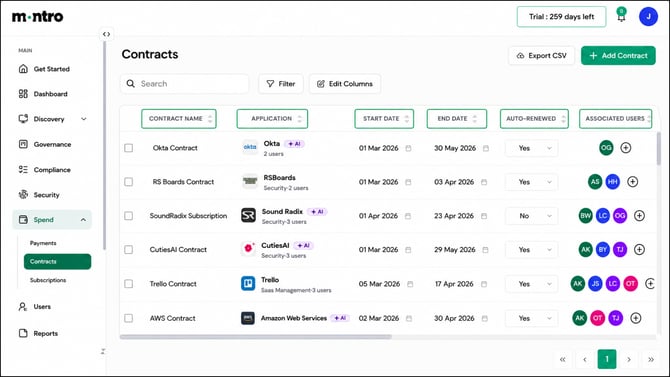
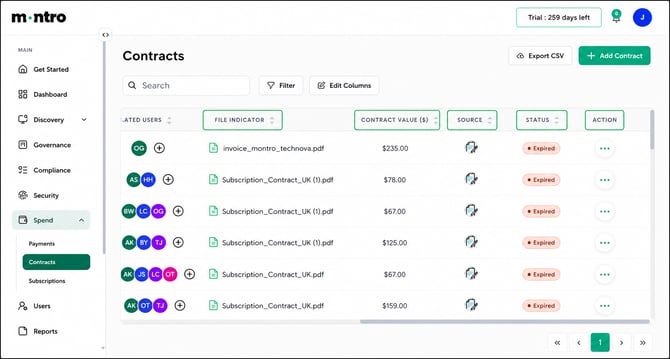
Each row in the Contracts table represents one vendor agreement. The table scrolls right, the columns visible first are Contract Name through to Associated Users, and scrolling right reveals File Indicator, Contract Value, Source, Status, and Action.
Contract Name - the name you have given this agreement, for example Okta Contract or SoundRadix Subscription. A clear, consistent naming convention makes the list easier to scan as it grows.
Application - the tool this contract covers, shown with its logo, category, and user count. Linking every contract to an application is what connects your spend and governance data together.
Start Date - when the agreement came into effect. Together with End Date, this tells you exactly how long the contract runs.
End Date - when the contract expires. This is one of the most important columns to keep accurate. An expired end date on an agreement that is still in use means you are operating without a valid contract in place.
Auto-Renewed - whether this contract renews automatically when it reaches its end date. A Yes here without an active review process is how organisations get locked into tools they no longer need. Check this column before end dates arrive.
Associated Users - the people in your organisation linked to this contract, shown as avatar initials. Use the + button to add more. Keeping this populated makes it clear who is accountable when a renewal decision needs to be made.
File Indicator - the contract document itself, shown as a filename link. If this is empty, the agreement only exists as a record in Montro with no supporting document attached. For any contract of material value, it is worth uploading the signed document.
Contract Value ($) - the total value of the agreement. This feeds into your overall spend picture and helps prioritise which renewals deserve the most attention.
Source - where the contract record came from, shown as an icon.
Status - the current state of the contract. Expired - shown in red - means the end date has passed. An Expired contract that is linked to an application still in active use needs to be renewed or replaced as a priority.
Action - the (…) menu lets you edit or delete the contract record.
| Tip - an Expired status does not mean the tool has stopped working. It means the legal agreement covering your use of it has lapsed. If employees are still using an application with an Expired contract, your organisation may be using it without the data processing protections, SLA commitments, or pricing terms you originally agreed. Review and renew these promptly. |
Adding a Contract
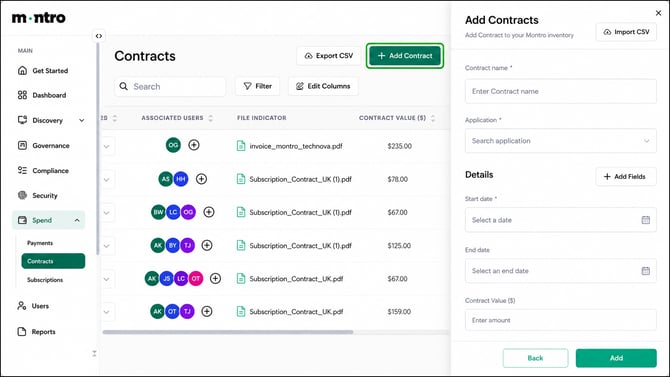
Click + Add Contract at the top right to create a new record. Fill in the contract name, link it to the correct application, set the start and end dates, and record whether it auto-renews. Upload the signed document using the File Indicator field so the agreement is stored alongside the record, not in a separate folder or inbox.
Keeping Contracts Current
A contract list is only useful if it reflects reality. A few habits keep it in good shape:
- When a new vendor agreement is signed, add it to Montro the same day rather than leaving it for later.
- Set a reminder to review contracts with upcoming end dates - particularly those marked Auto-Renewed Yes, where inaction leads to automatic commitment.
- After an employee offboarding, check whether any contracts are associated only with them and need reassigning.
- If a tool is decommissioned, update or close the contract record so your list stays accurate.
|
Tip - use Filter and set Status to Expired to get a quick view of every lapsed agreement. Work through the list and decide for each one: renew, replace, or close. Do not leave Expired contracts sitting on active applications. |
How Contracts Connect to the Rest of Montro
Contracts do not sit in isolation. In the Payments section, individual payments can be linked to a contract so you can see what was spent under each agreement. In the Subscriptions section, subscription records can also be linked to their governing contract. Keeping these connections in place means your spend data tells a coherent story rather than a collection of unrelated records.
For organisations subject to DORA, your contract records in Montro contribute directly to your ICT Third-Party Register. The contract details - value, term, associated application, and document - are some of the core fields that register requires.
Best Practices
- Check the Status column regularly. Any contract showing Expired that is still linked to an active application needs immediate attention.
- Review the Auto-Renewed column before end dates arrive. A contract renewing without a review is a missed opportunity to renegotiate or exit.
- Always upload the signed contract document. A record without a file attached is incomplete.
- Link every contract to the correct application - this is what connects your contract data to the rest of your governance and spend picture in Montro.
- Keep Associated Users up to date so it is clear who owns each vendor relationship.