
|
Overview Discovery automatically identifies and catalogues the technology assets used across your organisation - from SaaS applications and AI tools to cloud services. Rather than relying on manual audits or out-of-date spreadsheets, Discovery gives you a continuously updated inventory you can act on. |
Why Discovery Matters
Most organisations use more tools than they realise. Applications are adopted by individual teams, AI tools are trialled without central oversight, and cloud services accumulate over time. Without a reliable inventory, it becomes difficult to manage ownership, assess risk, control spending, or meet compliance requirements.
Discovery helps you address this by providing:
| Challenge | How Discovery helps |
| Unknown or unmanaged applications | Surfaces tools that haven’t been formally reviewed or assigned an owner |
| Difficulty proving compliance | Provides an auditable record of what’s in use and who is responsible |
| Uncontrolled AI adoption | Gives visibility into AI tools being used across teams |
| Inconsistent ownership | Makes it easy to assign and track accountability for each asset |
| Cloud sprawl | Consolidates cloud service usage into a single, governed view |
Accessing Discovery
To get to Discovery in Montro:
- Go to app.montro.io/login and sign in with your Montro credentials.
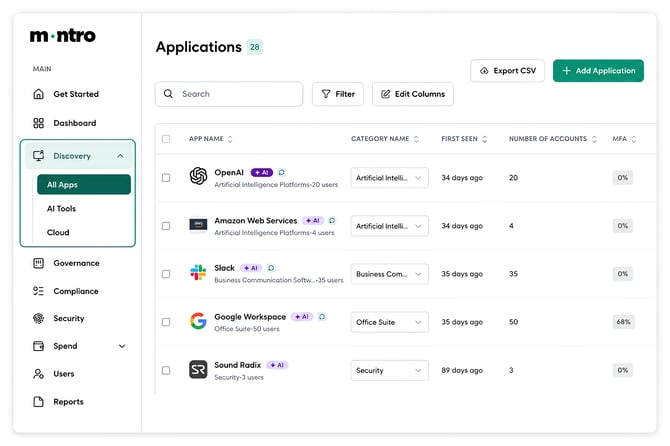
- In the left-hand navigation, click on Discovery.
- The section expands to show three sub-sections - All Apps, AI Tools, and Cloud.
- Click on the sub-section you want to explore.
How Discovery Works
Discovery connects to the systems and data sources used within your organisation and continuously collects information about the technology assets it finds. Assets are automatically categorised and surfaced in the three sections, ready for your team to review.
Once you are in Discovery, here is what the experience looks like:
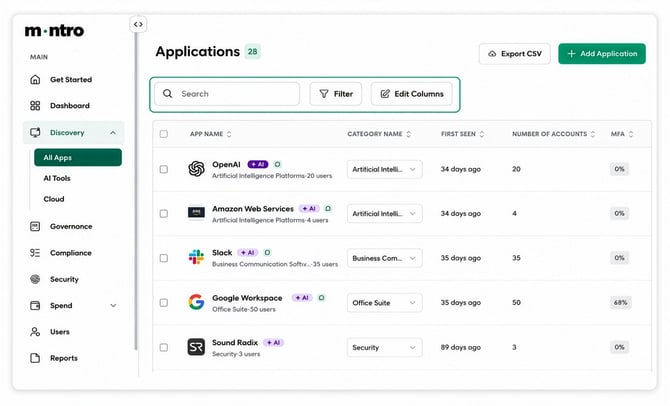
- Each section shows a table of assets. You can search by name, apply filters, and customise which columns are visible using Edit Columns.
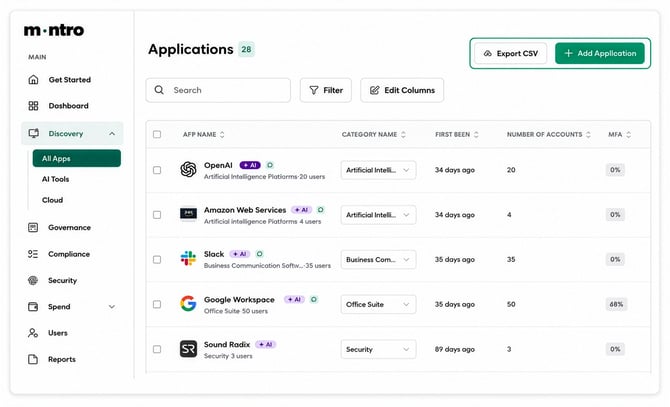
- At the top right of every section, Export CSV lets you download the full list for reporting or offline use.
- Use the + Add button in each section to add an asset manually if it hasn’t been picked up automatically.
Discovery Categories
Discovered assets are grouped into three categories, each with its own section in Montro:
All Apps
This is the main view - a complete list of every application found across your organisation. When you open All Apps, you will see each application listed with its name, category, number of accounts, governance status, renewal date, year-to-date spend, compliance scope, and data sensitivity level, among other details.
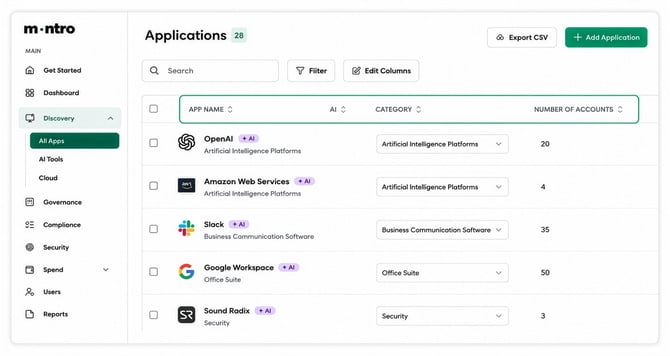
- Applications with AI capabilities are tagged with an AI badge so they stand out immediately.
- The Governance column shows whether each app has been reviewed - newly found apps appear as Discovered.
- Compliance Scope and Data Sensitivity Level tell you which frameworks apply and what type of data the application handles.
AI Tools
The AI Tools section focuses specifically on artificial intelligence applications in use across your organisation. Each entry shows the provider, source, year-to-date spend, current month spend, total projects and assistants running under the tool, and the last sync date.
- Total Projects and Total Assistants give you a sense of how actively a tool is being used.
- The spend trend indicator next to This Month ($) shows whether costs are increasing or decreasing.
Cloud
The Cloud section shows cloud-based infrastructure and services connected to your organisation. Each entry shows the provider, source, total resources, year-to-date and current month spend, and last sync status.
- Total Resources gives you a count of everything running under that cloud provider.
- Last Sync confirms whether Montro is actively receiving updated data from the provider.
Exploring an Individual Asset
Click on any application, AI tool, or cloud service in the list to open its full detail page. This is where you review, manage, and govern that specific asset.
When you open an asset, you land on the Overview tab. Across the top you will find seven tabs:
- Overview - the main summary page for the asset.
- Projects - projects associated with this asset or AI tool.
- Agents - AI agents configured under this provider.
- Users - everyone who has access to or is using this application.
- Subscriptions - subscription records linked to this asset.
- Contracts - contract records for this vendor or application.
- Payments - the full payment history for this asset.
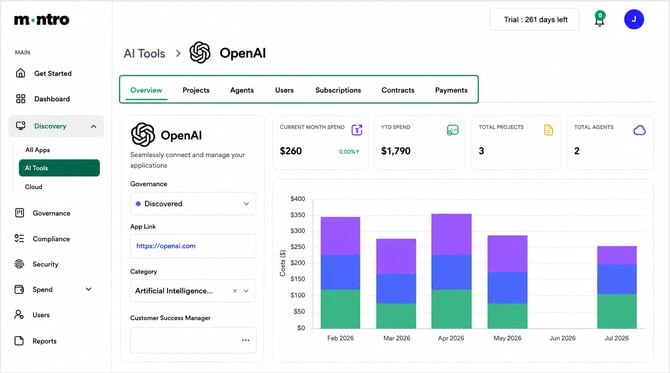
On the Overview tab, here is what you will find:
- On the left - the asset’s Governance status (which you can update here), App Link, Category, and Customer Success Manager.
- On the right - summary cards showing Current Month Spend, YTD Spend, Total Projects, and Total Agents at a glance.
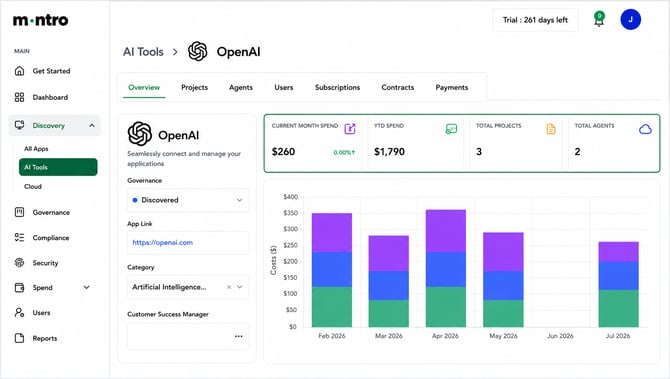
- Below the cards - a monthly spend chart showing how costs have tracked over the past six months, broken down by project or agent.
Scrolling further down the Overview tab reveals:
- Certificates - vendor compliance documents such as the DPA, Privacy Policy, Security Overview, Sub-Processors List, and SOC 2 Type II, each showing its current status.
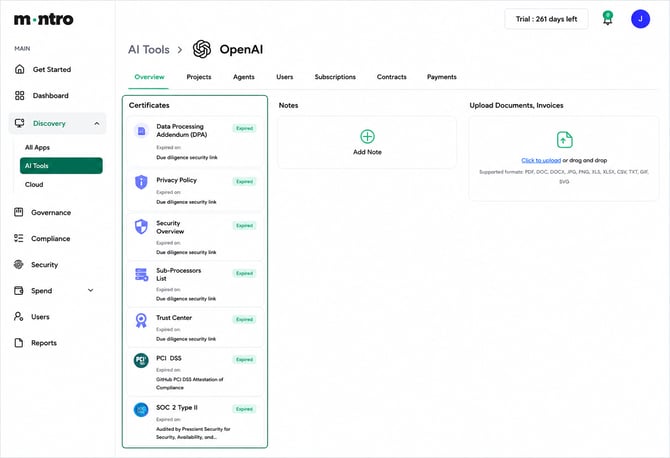
- Notes - click Add Note to record any decisions or context your team needs against this asset.
- Upload Documents, Invoices - attach contracts, invoices, or any relevant files directly to the asset. Supported formats include PDF, DOC, DOCX, JPG, PNG, XLS, XLSX, CSV, TXT, GIF, and SVG.
- Budget - click Add Budget to set a spend target for this asset and track it over time.
Governance Statuses
Every asset in Discovery has a governance status that shows where it stands in your review process. You can update it at any time from the Governance dropdown on the asset’s Overview tab.
| Status | What it means |
| Discovered | Newly found, not yet reviewed. The default for all new assets. |
| In Progress | Currently being reviewed - someone is actively assessing it. |
| Approved | Reviewed and sanctioned for use within the organisation. |
| Validated | Fully validated, including any compliance or security checks. |
| Closed | No longer in use or formally decommissioned. |
| Where to Start Go to All Apps and use the Filter button to filter by Discovered status. These are assets that haven’t been reviewed yet - and where your governance gaps are most likely to be. |
Best Practices
- Start by filtering All Apps by Discovered - these need attention first.
- Keep governance statuses up to date so your team always has an accurate picture.
- Use the Notes section to record decisions, especially for high-risk or sensitive tools.
- Upload contracts and compliance documents directly to the asset to keep everything in one place.
- Set budgets on key assets to track planned versus actual spend over time.
- Export to CSV regularly to support audits and governance reporting.