
|
Overview Governance is how your organisation takes control of the applications, AI tools, and cloud services that Discovery surfaces. By assigning ownership, updating statuses, and maintaining accurate records, your team can ensure every asset is properly managed throughout its lifecycle, and that you’re always ready for a compliance review or audit. |
Why Governance Matters
Discovering what technology your organisation uses is only the first step. Without a structured process for managing those assets - deciding who owns them, how they’re classified, and whether they meet your requirements, visibility alone doesn’t reduce risk.
The consequences of poor governance are practical and serious:
| Risk | What it means in practice |
| No clear ownership | Nobody is accountable when something goes wrong or a review is needed |
| Outdated statuses | Stakeholders can’t tell which assets are approved, under review, or flagged |
| Inconsistent classification | Assets fall through the cracks in compliance reporting |
| Unmanaged AI and cloud tools | Potential EU AI Act, DORA, NIS2, and GDPR exposure |
| No audit trail | Difficult to demonstrate compliance to regulators or internal stakeholders |
Accessing Governance
To get to Governance in Montro:
- Go to app.montro.io/login and sign in with your Montro credentials.
- In the left-hand navigation, click on Governance. It is listed directly below Discovery.
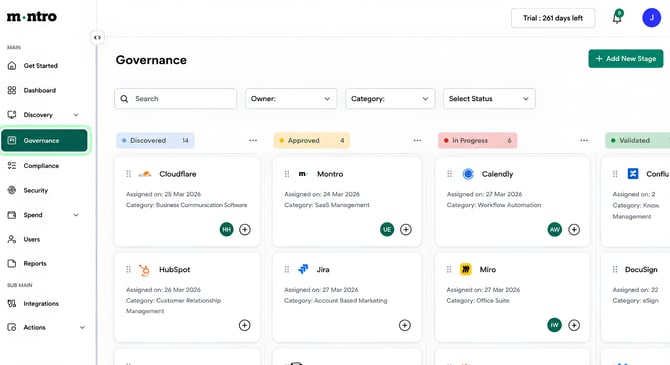
- The Governance board opens immediately — no sub-sections to navigate, just one view.
What You’ll See
Governance uses a Kanban board layout, very different from the table view in Discovery. Instead of rows, your assets appear as cards organised into columns, one column per governance status.
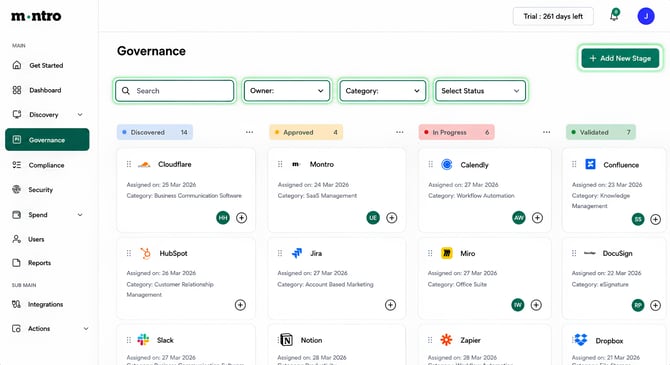
At the top of the page you will find:
- Search bar - find any asset by name instantly.
- Owner filter - narrow the board down to assets assigned to a specific person.
- Category filter - focus on a specific type of asset (e.g. AI Tools, Business Communication).
- Select Status filter - show only assets in a particular governance status column.
- + Add New Stage button (top right) - create a custom governance stage if your organisation needs one beyond the defaults.
The board itself shows five status columns:
- Discovered - assets that have been found but not yet reviewed.
- Approved - assets that have been reviewed and sanctioned for use.
- In Progress - assets currently being reviewed.
- Validated - assets that have passed full compliance and security checks.
- Closed - assets that are no longer in use or have been decommissioned.
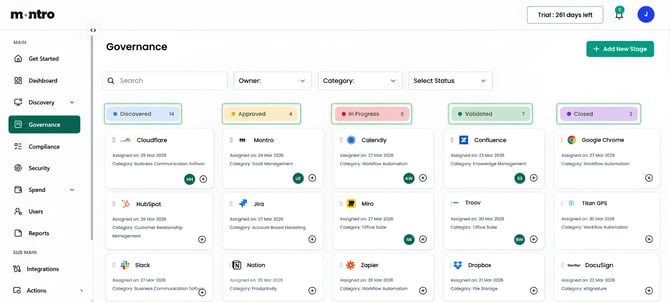
| Tip Each column shows a count of how many assets are in that status. The Discovered column is the best place to start - these are assets waiting for your attention. |
Working with Asset Cards
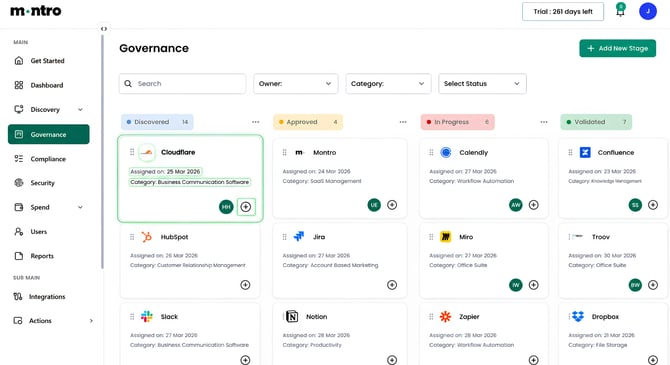
Each card on the Governance board represents a single asset. Every card shows:
- App logo and name - so you can identify the asset at a glance.
- Assigned on date - when this asset was added to the governance process.
- Category - how the asset is classified (e.g. Business Communication Software, Workflow Automation).
- Owner avatar - the initials of the person assigned as owner. If no owner is assigned, the avatar will be empty.
- + button - click this directly on the card to assign or add an owner.
Asset Ownership
Assigning an owner to each asset is the single most important governance action you can take. Without a named owner, there is no one accountable for keeping the asset’s information current, managing its risks, or responding when something changes.
To assign an owner:
Click the + button on the asset card directly from the Governance board,
or
Open the asset and update the owner field on the Overview tab.
Once assigned, the owner’s initials appear on the card. Asset owners are typically responsible for:
- Keeping the asset’s information accurate and up to date.
- Managing risks associated with the asset.
- Supporting compliance activities and periodic reviews.
- Coordinating with the relevant team when decisions need to be made.
How Governance Supports Compliance
Governance in Montro isn’t just about keeping records tidy, it directly supports your organisation’s compliance obligations under GDPR, the EU AI Act, DORA, and NIS2.
| Compliance need | How Governance in Montro helps |
| GDPR Article 30 - Record of Processing Activities | Asset records with ownership and classification contribute to an accurate RoPA |
| EU AI Act - AI system inventory | Classified and governed AI tools provide the foundation for risk-tier mapping |
| DORA - ICT Third-Party Register | Governed assets with ownership and contract details support ICT register obligations |
| NIS2 - Supply chain security | Ownership and classification data identifies unmanaged supply chain relationships |
|
Good to Know A single unmanaged AI tool can simultaneously create compliance gaps across GDPR, the EU AI Act, DORA, and NIS2. Keeping your governance records current is one of the most effective ways to reduce this exposure. |
Best Practices
- Start with the Discovered column - these assets are waiting for an owner and a status.
- Assign an owner to every asset, even if it is a provisional assignment - an unowned asset is an unmanaged risk.
- Prioritise AI tools and customer-facing systems first, as these carry the highest compliance obligations.
- Review the In Progress column regularly to make sure reviews are not stalling.
- Use the Owner and Category filters to focus your review on what matters most to your team today.
- Align your governance review cycles with your organisation’s audit and compliance calendar.