
|
Overview Integrations are how Montro learns about the applications, users, and services in your organisation. When you connect a tool, Montro syncs data from it and uses that data to populate your application inventory, compliance registers, security views, and spend records. The more integrations you connect, the more complete your picture becomes. |
Accessing Integrations
To get to the Integrations section in Montro:
- Go to app.montro.io/login and sign in with your Montro credentials.
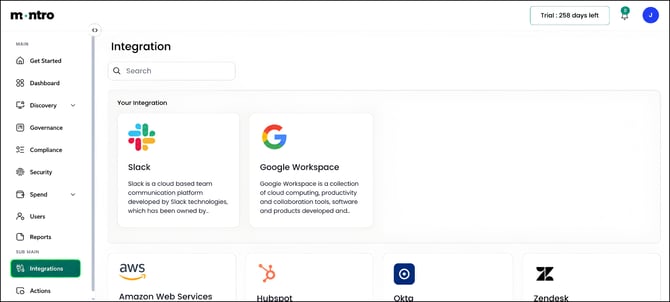
- In the left-hand navigation, scroll down to Sub Main and click Integrations.
What You Will See
The Integrations page is divided into two sections:
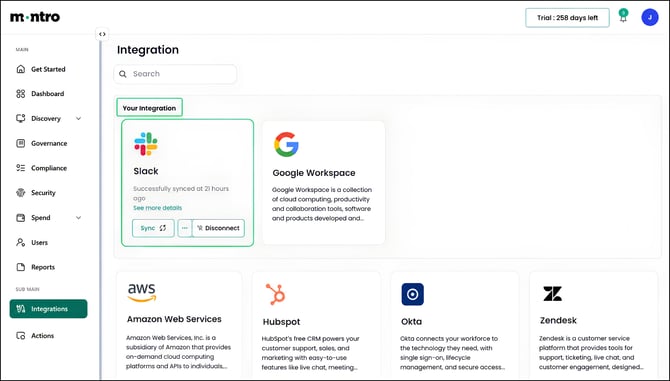
- Your Integrations - shown at the top, this displays any integrations you have already connected. Each connected integration shows its logo, name, the last successful sync time, a See more details link, a Sync button, and a Disconnect option.
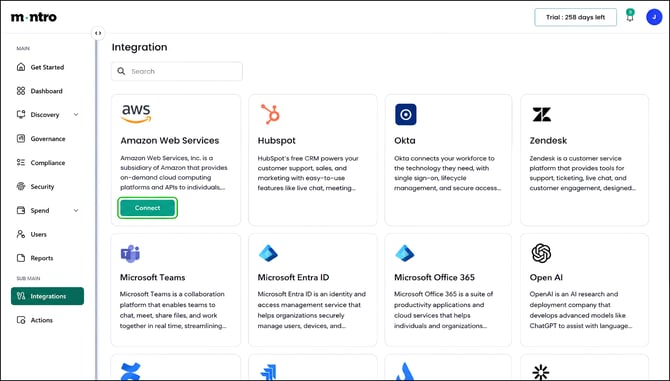
- Available Integrations - shown below, this is the full list of integrations available to connect. Each card shows the integration’s logo, name, and a short description. Integrations that are not yet connected show a Connect button when you hover over the card.
Connecting an Integration
To connect a new integration:
- Find the integration you want to connect in the Available Integrations section. Use the Search bar at the top of the page if needed.
- Click Connect on the integration card. A setup panel slides in from the right.
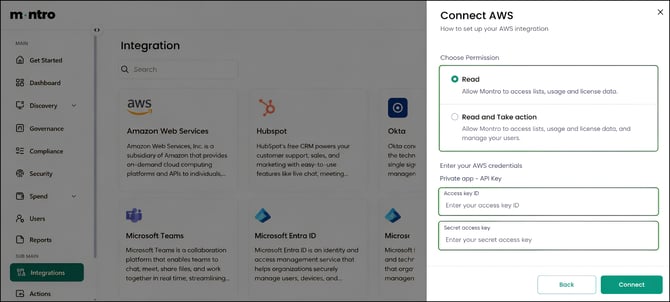
- Choose your permission level. Most integrations offer two options:
| Permission | What it allows |
| Read | Montro can access lists, usage, and licence data from the connected tool. No changes are made to the tool. |
| Read and Take action | Montro can access data and also perform actions such as managing users. Choose this if you want to use workflow automation features. |
- Enter your credentials. Depending on the integration, you will be asked to provide an API key, a token, or to complete an OAuth authorisation flow. The setup panel shows exactly what is required for each integration.
- Click Connect to complete the setup. Montro will run an initial sync and the integration will appear in Your Integrations at the top of the page.
|
Tip Where to find your API key or token. For most integrations, API keys are generated in the connected tool’s developer or admin settings. For HubSpot, for example, the token is created under Settings > Integrations > Private Apps. The setup panel in Montro shows the credential type required, but the key itself must be generated in the third-party tool. |
Managing a Connected Integration
Once an integration is connected, it appears in the Your Integrations section. From there you can:
- See more details - opens a detailed view of the integration, including sync history, data last received, and any errors.
- Sync - triggers a manual sync to pull the latest data from the connected tool immediately, without waiting for the next scheduled sync.
- Disconnect - removes the integration from Montro. Data already synced remains in your Montro environment, but no new data will be pulled from the tool after disconnection.
How Integrations Feed the Rest of Montro
| Integration data | Where it appears in Montro |
| Users and application access | Discovery - populates your application inventory and user list |
| Identity provider data | Security - feeds OAuth grant visibility and MFA enrolment data |
| Licence and subscription data | Spend - informs subscription records and licence utilisation |
| Cloud services and resources | Discovery - adds cloud assets to your inventory |
| CRM and SaaS tool data | Compliance - contributes to GDPR RoPA, DORA ICT Register, and NIS2 Supply Chain registers |
Best Practices
- Connect your identity provider first - Google Workspace, Microsoft Entra ID, or Okta - to give Montro the broadest view of your user and application landscape from the start.
- Use Read permission unless you specifically need Montro to take actions in the connected tool. Read is sufficient for discovery, compliance, and reporting.
- Run a manual Sync after making significant changes in a connected tool - for example, after a user offboarding or a new application rollout, rather than waiting for the next scheduled sync.
- Check the See more details view periodically to confirm syncs are completing successfully and to catch any credential or permission errors early.
- Disconnect integrations for tools your organisation is no longer using, to keep your integration list accurate.