
Overview
Purpose
The Microsoft 365 Integration enables organisations to securely connect their Microsoft 365 tenant with Montro.
Once connected, Montro automatically synchronises organisational resources, providing centralised visibility into users, licenses, applications, directory roles, authentication methods, and other supported Microsoft 365 data.
Data synchronised through this integration is processed and stored within Montro’s EU-based infrastructure. For full details on Montro’s infrastructure, sub-processors, and data protection practices, see the Trust & Security page.
The integration supports both Read and Read and Take Action permission levels, allowing organisations to choose the appropriate level of access based on their operational requirements.
STEP 1: Sign in to Montro
Go to app.montro.io and sign in to your Montro account using your administrator credentials.
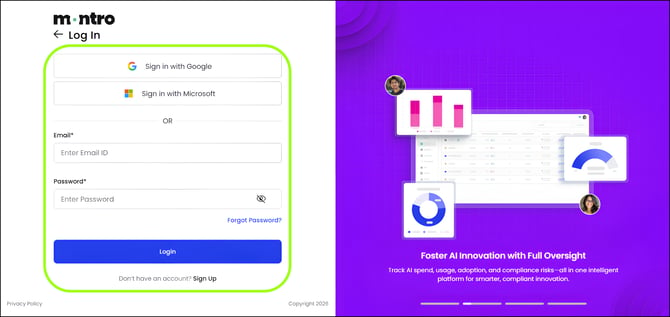 Montro sign-in screen
STEP 2: Navigate to the Integrations Section
From the left navigation menu, select Integrations, then locate the Microsoft 365 integration.
Click Connect to begin the integration process.
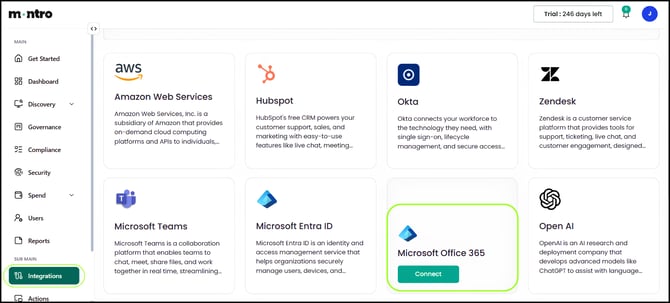
Integrations section with Microsoft 365 connector
STEP 3: Configure the Microsoft 365 Integration
The Connect Microsoft 365 side panel allows you to select the appropriate permission level before authorising the integration.
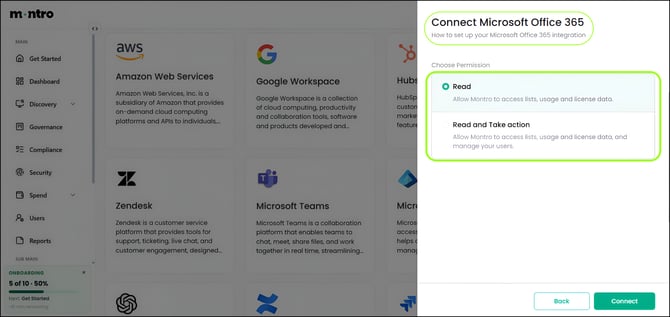 Connect Microsoft 365 panel
Choose the permission level based on your organisation's operational requirements.
Read
The Read permission grants Montro read-only access to your Microsoft 365 environment. This permission allows Montro to securely synchronise organisational data without making any modifications to your Microsoft 365 tenant.
Read and Take Action
The Read and Take Action permission grants Montro both read and administrative access. In addition to synchronising organisational data, this permission enables Montro to perform supported administrative actions within your Microsoft 365 environment. Supported administrative actions include:
- Create Microsoft 365 users
- Assign licenses to existing users
- Remove assigned licenses
After selecting the required permission level, click Connect. You will then be redirected to the Microsoft sign-in page to authenticate and authorise the integration.
TECHNICAL DETAILS - Microsoft Identity Platform
Montro integrates with Microsoft 365 using the Microsoft Identity Platform (OAuth 2.0) to securely authenticate administrators and request access to Microsoft Graph resources. The permissions requested depend on the permission level selected during the integration process.
Read Permission
When Read permission is selected, Montro requests the following Microsoft Graph permissions.
| Permission | Description |
| openid | Authenticates the administrator and establishes the identity session. |
| profile | Retrieves the administrator's basic profile information. |
| Retrieves the administrator's email address. | |
| offline_access | Allows secure token refresh for future synchronisation. |
| User.Read.All | Synchronises Microsoft 365 users. |
| Directory.Read.All | Synchronises Microsoft Entra directory information. |
| Organisation.Read.All | Retrieves organisation details. |
| Reports.Read.All | Synchronises Microsoft 365 usage and activity reports. |
| UserAuthenticationMethod.Read.All | Synchronises Multi-Factor Authentication (MFA) information. |
Read and Take Action Permission
When Read and Take Action permission is selected, Montro requests the following Microsoft Graph permissions.
| Permission | Description |
| openid | Authenticates the administrator and establishes the identity session. |
| profile | Retrieves the administrator's basic profile information. |
| Retrieves the administrator's email address. | |
| offline_access | Allows secure token refresh for future synchronisation. |
| User.ReadWrite.All | Creates and manages Microsoft 365 users. |
| Directory.ReadWrite.All | Manages Microsoft Entra directory information. |
| Organisation.Read.All | Retrieves organisation details. |
| Reports.Read.All | Synchronises Microsoft 365 usage and activity reports. |
| UserAuthenticationMethod.Read.All | Synchronises Multi-Factor Authentication (MFA) information. |
Supported Administrative Actions
The following administrative actions are available only when Read and Take Action permission is granted.
| Administrative Action | Description |
| Create User | Creates a new Microsoft 365 user. |
| Assign License | Assigns a Microsoft 365 license to an existing user. |
| Remove License | Removes an assigned Microsoft 365 license from an existing user. |
Security Notes
- Montro requests only the permissions required for the selected integration mode.
- Synchronised data is processed and stored within Montro’s EU-based infrastructure, in line with Montro’s data protection practices.
- Authentication and authorisation are performed using the Microsoft Identity Platform (OAuth 2.0).
- Microsoft 365 administrator credentials are never stored or processed by Montro.
- All communication between Montro and Microsoft Graph services is encrypted using HTTPS (TLS).
- Administrative actions are available only when Read and Take Action permission has been explicitly granted.
STEP 4: Select Your Microsoft 365 Account
After clicking Connect, you will be redirected to the Microsoft Sign-In page.
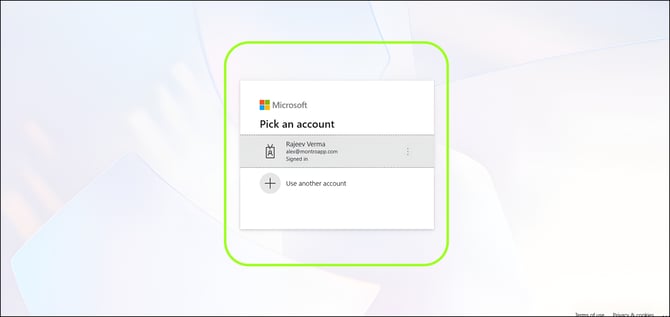 Microsoft Sign-In page
If you are not already signed in, enter your Microsoft 365 administrator credentials to continue. If you are already signed in, select the appropriate Microsoft 365 administrator account from the available accounts.
After successfully selecting your administrator account, you will be redirected to the Microsoft Permissions Requested page to review and authorise the permissions required by Montro.
| NOTE: Some tenants restrict user consent to third-party applications (Microsoft Entra admin center → Enterprise Applications → Consent and permissions). Because Read and Take Action requests high-privilege Graph scopes (Directory.ReadWrite.All, User.ReadWrite.All), a Global Administrator may need to grant tenant-wide admin consent before the integration can complete, a lower-privileged admin role is not always sufficient. |
| NOTE: Ensure that you sign in using a Microsoft 365 administrator account with the required administrative privileges to complete the integration successfully. |
TECHNICAL DETAILS - Account Authentication
Montro uses the Microsoft Identity Platform (OAuth 2.0) to authenticate administrators securely. During this step:
- The administrator clicks Connect.
- The administrator is redirected to the Microsoft Sign-In page.
- Microsoft verifies the administrator's identity.
- The selected Microsoft 365 account is authenticated.
- After successful authentication, the administrator is redirected to the permissions consent page.
Security Notes
- Administrator authentication is performed entirely by Microsoft.
- Microsoft 365 credentials are never shared with or stored by Montro.
- Authentication is secured using the Microsoft Identity Platform and HTTPS (TLS).
- Only authenticated administrator accounts can continue to the permission consent step.
STEP 5: Grant Microsoft 365 Permissions
After successfully signing in, Microsoft displays the Permissions Requested page.
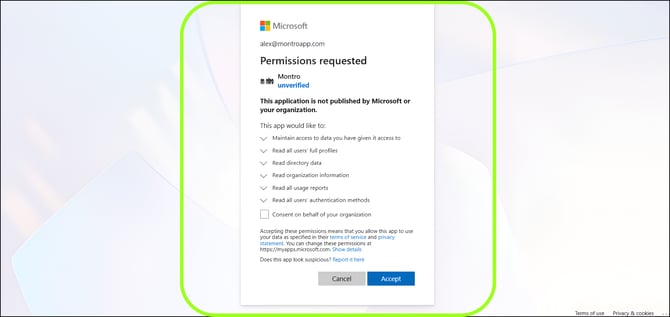 Microsoft Permissions Requested page
The Permissions Requested screen lists the Microsoft Graph permissions required by Montro to securely access your Microsoft 365 environment. Carefully review the requested permissions before proceeding.
To continue with the integration, click Accept.
Once the requested permissions are approved, Microsoft authorises the integration and redirects you back to Montro, where the synchronisation process begins automatically.
| NOTE: The permissions requested depend on the permission level (Read or Read and Take Action) selected during the integration setup. |
STEP 6: Verify Synchronisation
After the required permissions have been granted, Microsoft 365 redirects you back to Montro, where the integration is established and the synchronisation process begins automatically.
Once the connection is successfully established, a Successfully Synced confirmation pop-up is displayed.
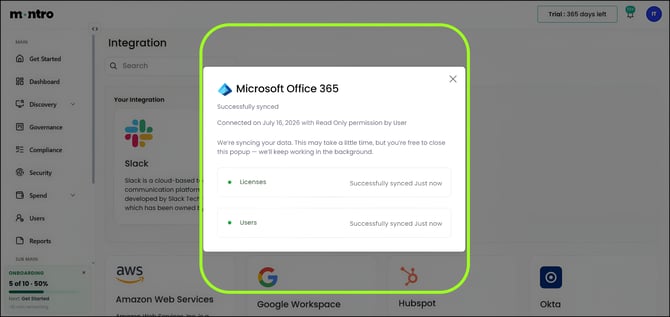 Successfully Synced confirmation
The synchronisation summary displays the following information:
- Integration Status - Displays the current synchronisation status.
- Connected On - Displays the date and time when the integration was established.
- Permission Level - Displays the permission level granted during the integration.
- Resources Synchronised - Displays the synchronisation status of supported Microsoft 365 resources.
Once all resources display Successfully Synced, the Microsoft 365 integration has been completed successfully.
| NOTE: The duration of the initial synchronisation depends on the size of your Microsoft 365 tenant. Larger environments may require additional time to complete the synchronisation process. |
TECHNICAL DETAILS - Synchronisation Process
After successful authorisation, Montro automatically begins synchronising supported resources from your Microsoft 365 environment. The synchronisation process retrieves organisational data using the approved Microsoft Graph permissions and securely imports it into the Montro platform.
The synchronised information is used across multiple Montro modules, including:
- Discovery
- Users
- Spend Management
- Governance
- Security Insights
- Reporting
Resources Synchronised
The following Microsoft 365 resources are synchronised during the integration process.
| Resource | Description |
| Users | Synchronises Microsoft 365 users, including incremental user updates. |
| Licenses | Synchronises subscribed licenses and user license assignments. |
| User Sign-in Information | Synchronises sign-in activity used for application discovery. |
| Multi-Factor Authentication (MFA) Status | Synchronises the configured MFA status for users. |
| Directory Roles | Synchronises Microsoft Entra directory roles. |
| Role Assignments | Synchronises directory role assignments. |
| Organisation Information | Synchronises Microsoft 365 organisation details. |
STEP 7: View Imported Applications
After the Microsoft 365 integration has been successfully connected and the synchronisation process is complete, the imported applications can be viewed in the Applications section of Montro.
Navigation: Discovery → All Apps
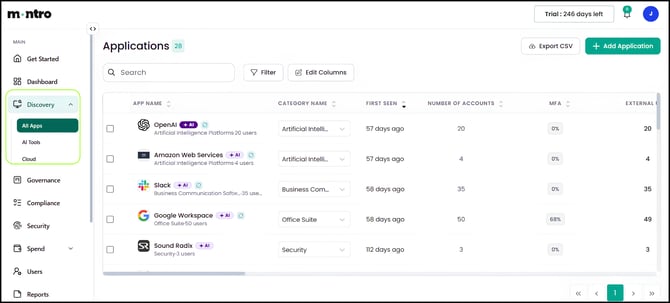 All Apps: imported applications
The All Apps page provides a centralised inventory of applications discovered from your connected Microsoft 365 environment. Each application is automatically synchronised and enriched with relevant metadata, providing administrators with greater visibility into application usage across the organisation.
The Applications page includes information such as:
- Application Name
- Category
- Number of Accounts
- MFA Status
- External Users
- Source
- Additional Application Details
| NOTE: The applications displayed depend on the data available within your connected Microsoft 365 tenant. Newly discovered applications will appear after the next successful synchronisation cycle. |
STEP 8: View Imported Subscriptions
After the Microsoft 365 integration has been successfully connected and the synchronisation process is complete, the imported subscriptions can be viewed in the Subscriptions section of Montro.
Navigation: Spend → Subscriptions
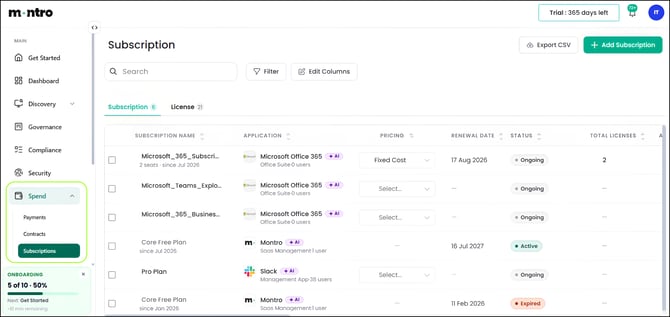 Subscriptions page
The Subscriptions page provides a centralised view of all Microsoft 365 subscriptions synchronised with your tenant. This information enables administrators to monitor subscription plans, licensing details, renewal information, and overall license utilisation from a single location.
Each subscription record includes information such as:
- Subscription Name
- Associated Application
- Subscription Status
- Total Licenses
- Assigned Licenses
- Available Licenses
- Renewal Information
| NOTE: The subscription information displayed is synchronised directly from your Microsoft 365 tenant. The available data may vary depending on your organisation's Microsoft 365 licensing configuration. |
STEP 9: View Imported Licenses
After the Microsoft 365 integration has been successfully connected and the synchronisation process is complete, the imported licenses can be viewed in the License section of Montro.
Navigation: Spend → Subscriptions → License
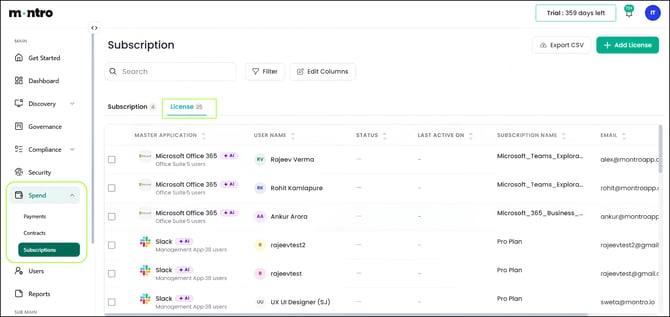 License page
The License page provides a centralised view of all Microsoft 365 license assignments synchronised from your connected tenant. This enables administrators to review license allocation, assigned users, subscription mapping, and license utilisation from a single location.
Each license record includes information such as:
- Master Application
- User Name
- User Email Address
- License Status
- Subscription Name
- Last Active On
| NOTE: The displayed license information is synchronised directly from your connected Microsoft 365 tenant. The available license data depends on your organisation's Microsoft 365 licensing configuration. |
TECHNICAL DETAILS - License Synchronisation
Once the Microsoft 365 integration is successfully authorised, Montro automatically synchronises supported Microsoft 365 license assignments. Each synchronised license is associated with its corresponding subscription and assigned user, providing administrators with a centralised view of software license utilisation.
Supported Administrative Actions
When the integration is configured with Read and Take Action permission, Montro supports the following license management operations.
| Administrative Action | Description |
| Assign License | Assigns a Microsoft 365 license to an existing user. |
| Create User and Assign License | Creates a new Microsoft 365 user and assigns the selected license. |
| Remove License | Removes an assigned Microsoft 365 license from an existing user. |
STEP 10: View Imported Users
After the Microsoft 365 integration has been successfully connected and the synchronisation process is complete, the imported users can be viewed in the Users section of Montro.
Navigation: Users → Employees
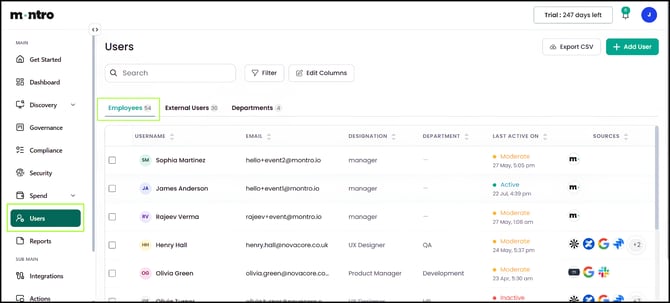 Employees: imported users
The Employees page provides a centralised view of all users synchronised from your connected Microsoft 365 tenant. It enables administrators to review user identities, monitor account status, and manage organisational user information from a single location.
Each imported user record includes information such as:
- User Name
- Email Address
- Designation
- Department
- Last Active On
- Source
- Associated Applications
| NOTE: The displayed user information is synchronised directly from your connected Microsoft 365 tenant. The available user attributes may vary depending on your organisation's Microsoft Entra ID configuration. |
STEP 11: Disconnect the Integration
If you need to disable the Microsoft 365 integration, go to Integrations, locate the Microsoft 365 connector, and select Disconnect.
Navigation: Integrations → Microsoft 365 → Disconnect
Once disconnected, Montro stops synchronising data from your Microsoft 365 tenant, and no further administrative actions can be performed until the integration is reconnected.
| NOTE: Data previously synchronised into Montro remains visible after the integration is disconnected. It will not be updated further until the integration is reconnected. |
Frequently Asked Questions (FAQ)
This section provides answers to the most commonly asked questions about the Microsoft 365 integration.
Q1. Who can configure the Microsoft 365 integration?
The integration should be configured using a Microsoft 365 Administrator account with the necessary permissions to authorise the requested Microsoft Graph access.
Q2. What permission levels are supported?
The Microsoft 365 integration supports the following permission levels:
- Read - Synchronises Microsoft 365 data into Montro without making any changes to your Microsoft 365 tenant.
- Read and Take Action - Includes all Read capabilities and allows Montro to perform supported administrative actions, such as creating users and managing license assignments.
Q3. What data is synchronised from Microsoft 365?
Depending on the granted permission level, Montro synchronises the following resources:
- Users
- Licenses
- User License Assignments
- Directory Roles
- Role Assignments
- Multi-Factor Authentication (MFA) Status
- User Sign-in Information
- Organisation Information
- Applications discovered from Microsoft 365
Q4. Does Montro store my Microsoft 365 password?
No. Montro uses the Microsoft Identity Platform (OAuth 2.0) for authentication. Your Microsoft 365 credentials are verified directly by Microsoft and are never shared with or stored by Montro.
Q5. How long does the initial synchronisation take?
The duration of the initial synchronisation depends on the size of your Microsoft 365 tenant. Organisations with a larger number of users, licenses, and applications may require additional time to complete the synchronisation process.
Q6. When will newly added users or license changes appear in Montro?
Newly created users, updated user information, license assignments, and other supported changes are synchronised during the next successful synchronisation cycle.
Q7. Can I change the permission level after the integration is connected?
Yes. If your organisation's requirements change, you can reconnect the integration and authorise it using a different permission level.
Q8. What administrative actions are available in Read and Take Action mode?
When Read and Take Action permission is granted, Montro supports the following administrative actions:
- Create Microsoft 365 users
- Assign licenses to users
- Remove assigned licenses
Q9. What happens if I do not grant the requested permissions?
If the required Microsoft Graph permissions are not granted, the integration cannot be completed and Microsoft 365 data will not be synchronised into Montro.
Q10. Which Microsoft services are used during the integration?
Montro communicates with the following Microsoft services:
- Microsoft Identity Platform
- Microsoft Graph API
- Microsoft Entra ID
Q11. Is communication between Montro and Microsoft 365 secure?
Yes. All communication between Montro and Microsoft 365 is encrypted using HTTPS (TLS). Authentication and authorisation are handled securely through the Microsoft Identity Platform.
Q12. Can I disconnect the Microsoft 365 integration?
Yes. The integration can be disconnected at any time from the Integrations section. Once disconnected, Montro will stop synchronising data until the integration is reconnected. See Step 11 for instructions.
Q13. Why are some users, applications, or licenses not visible after the integration?
If some resources are not immediately visible:
- Allow the initial synchronisation to complete.
- Verify that all required Microsoft Graph permissions have been granted.
- Ensure the administrator account has access to the required Microsoft 365 resources.
- Retry synchronisation if necessary.
Q14. Does Montro make changes to Microsoft 365 when Read permission is selected?
No. When Read permission is selected, Montro only retrieves and synchronises Microsoft 365 data. No changes are made to your Microsoft 365 tenant.
Q15. Where can I view the synchronised data after the integration is completed?
After synchronisation is complete, the imported Microsoft 365 data can be viewed in the following sections:
- Discovery → All Apps — Imported applications
- Spend → Subscriptions — Imported subscriptions
- Spend → Subscriptions → License — Imported license information
- Users → Employees — Imported user accounts
Q16. How does Montro maintain the Microsoft 365 connection?
After the initial authorisation, Montro securely maintains the integration using the permissions granted during setup. This enables ongoing synchronisation without requiring the administrator to sign in again, unless the authorisation is revoked or expires.