
|
Overview Reports gives you a quick way to export data from across Montro - users, applications, payments, contracts, and subscriptions - in a format you can share, analyse, or submit for an audit. Generating a report takes a single click, and your history is saved so you can re-download anything you’ve previously generated. |
Why Reporting Matters
Data spread across multiple modules is only useful if it can be brought together quickly when you need it. Whether you’re preparing for an internal review, responding to a regulator, or giving leadership a snapshot of your technology landscape, Reports lets you pull that data out in seconds rather than piecing it together manually.
| Need | How Reports helps |
| Audit preparation | Export a complete record of users, applications, contracts, or payments in one click |
| Compliance evidence | Pull data exports to demonstrate what tools are in use and who is responsible |
| Stakeholder updates | Share clean data exports with leadership, finance, or external reviewers |
| Spend reviews | Export payment and subscription data to support budget or procurement discussions |
| User access reviews | Export the full user list to verify who has access and identify any anomalies |
Accessing Reports
To get to Reports in Montro:
- Go to app.montro.io/login and sign in with your Montro credentials.
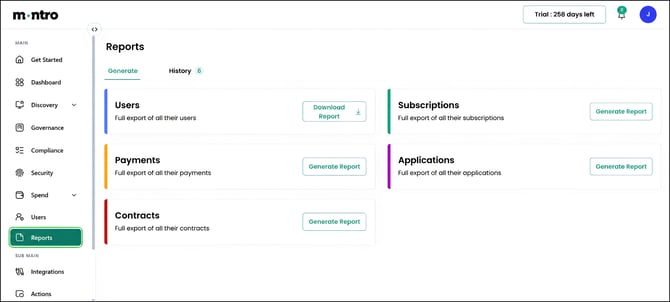
- In the left-hand navigation, click on Reports. It sits directly below Users.
- The Reports page opens on the Generate tab by default.
What You’ll See
The Reports page has two tabs:
- Generate - where you create new reports.
- History - where you access reports that have already been generated.
Generating a Report
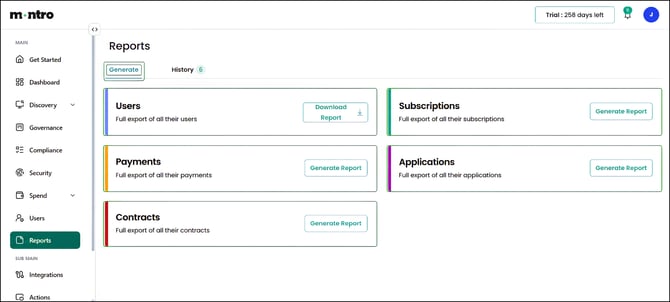
Click on the Generate tab. You will see five report cards, each representing a different data set you can export:
| Report | What it exports |
| Users | A full export of all users in your Montro account |
| Payments | A full export of all payment records |
| Contracts | A full export of all contract records |
| Subscriptions | A full export of all subscription records |
| Applications | A full export of all discovered applications |
To generate a report:
- Find the report card for the data set you need.
- Click Generate Report on that card.
- Montro will process the report and make it available for download.
- Go to the History tab to find your report and download it.
|
Tip Reports are generated as full data exports - they include everything in that module. If you need a filtered view, apply filters in the relevant section first (e.g. filter by Governance status in Discovery) before generating your report. |
Viewing and Downloading Previous Reports
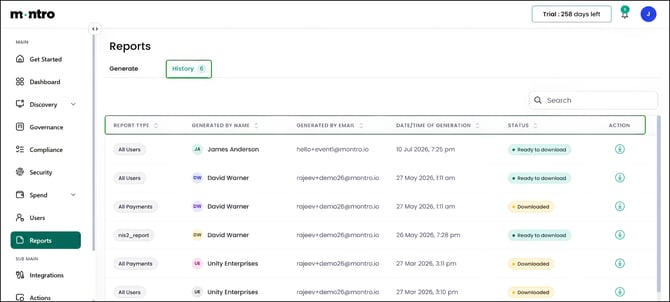
Click on the History tab to see all reports that have been generated. Each row in the table shows:
- Report Type - the type of report that was generated (e.g. All Users, All Payments).
- Generated By Name - who generated the report.
- Generated By Email - their email address.
- Date/Time of Generation - exactly when the report was created.
- Status - whether the report is Ready to download (green) or has already been Downloaded (amber).
- Action - a download icon to download the report again at any time.
To download a report from History:
- Click on the History tab.
- Find the report you need - use the Search bar at the top right to search by report type or name if needed.
- Click the download icon in the Action column to download it.
| Good to Know The History tab shows who generated each report and when, giving you a clear audit trail of what data has been exported and by whom. Reports with a status of Ready to download can be downloaded at any time, you do not need to regenerate them. |
Best Practices
- Generate and download a Users report periodically to verify who has access to Montro, useful for access reviews and audits.
- Use the Contracts report to get a complete picture of your vendor commitments in one file.
- Run a Payments report before budget reviews to give finance a clean export of all recorded spend.
- Check the History tab before generating a new report, a recent version may already be available to download.
- Note who generated each report in the History tab, this tells you who last reviewed that data set.