
|
Overview The Security module gives your organisation visibility into three security intelligence signals drawn from your discovered application estate: vendor breach history, OAuth permission grants made by your users, and sub-processor relationships behind each application. Each tab surfaces a different category of exposure and lets you take action directly from the platform. |
Accessing Security
To get to the Security section in Montro:
- Go to app.montro.io/login and sign in with your Montro credentials.
- In the left-hand navigation, click on Security.
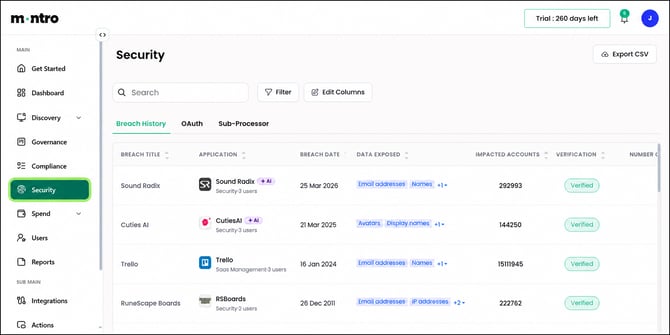
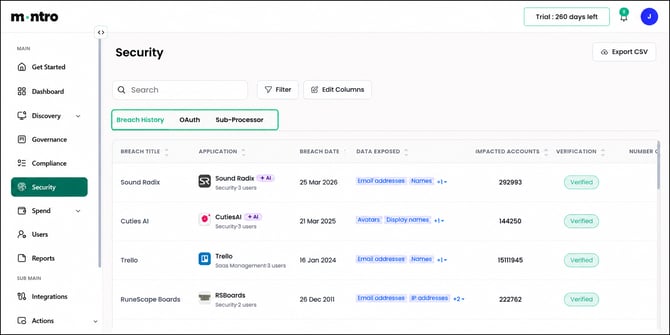
- Use the tab bar to switch between Breach History, OAuth, and Sub-Processor.
At the top right you will find Export CSV, which downloads the current tab as a CSV file for offline analysis or reporting.
Breach History
The Breach History tab shows known data breaches associated with applications currently in use across your organisation. Montro cross-references your discovered application estate against a breach intelligence database and surfaces any matches, so you can see not just which vendors have been breached, but which ones your employees are actively using.
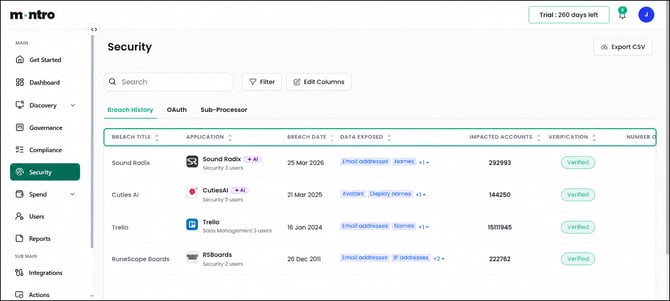
Each row in the table shows:
- Breach Title - the name of the breach event.
- Application - the application in your estate linked to this breach, with its category and active user count.
- Breach Date - when the breach occurred. This may be earlier than the date it was publicly disclosed.
- Data Exposed - the categories of data affected, such as email addresses, names, or IP addresses. Where more than two types were exposed, additional types appear behind a +N dropdown.
- Impacted Accounts - the total number of accounts affected globally by the breach.
- Verification - whether the breach has been independently confirmed. Verified means it has been validated by a trusted source.
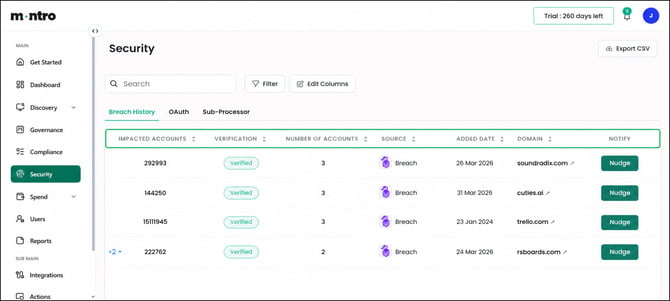
- Number of Accounts - the number of users within your organisation who have accounts with this vendor.
- Source - the intelligence feed through which the breach was identified.
- Added Date - when the breach was added to the intelligence database. Breaches are often disclosed months or years after they occur.
- Domain - the domain of the breached service. Select the link icon to open the vendor’s website.
- Nudge - sends a notification to your users who have accounts with the breached application, prompting them to review their credentials.
|
Tip When a new breach appears, check the Number of Accounts column first. A breach affecting 3 of your users across an application with limited data exposure is a different priority to one affecting 50 users with email addresses and passwords exposed. Use Nudge to prompt affected users to act. |
OAuth
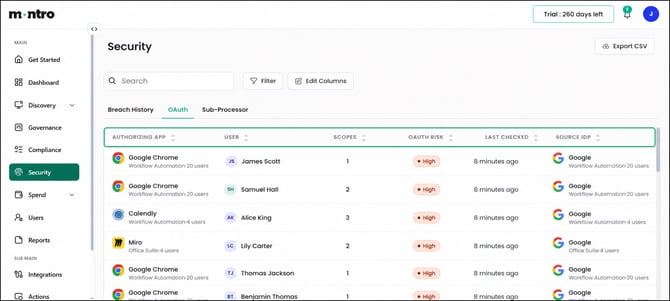
The OAuth tab shows every instance where a user in your organisation has granted an application OAuth access to their identity provider account. Each row represents one user–application authorisation.
OAuth grants are a common source of unmanaged third-party access. When a user connects an application to their Google or Microsoft account, that application receives ongoing access within the permissions it was granted, often without IT visibility and sometimes long after the user has stopped actively using the tool.
Each row in the table shows:
- Authorising App - the application that was granted OAuth access.
- User - the individual who authorised the connection.
- Scopes - the number of OAuth permission scopes granted. Each scope defines a specific type of access - for example, the ability to read calendar data, send email, or access contacts. More scopes means broader access.
- OAuth Risk - Montro’s risk assessment for this grant, based on the sensitivity of the scopes. High is the most common rating for grants that include write permissions or access to identity and communication data.
- Last Checked - how recently Montro verified this grant was still active.
- Source IDP - the identity provider through which the OAuth connection was made, for example Google Workspace.
|
Tip High OAuth risk does not automatically mean the application should be removed. It means the grant should be reviewed. Ask: is this application sanctioned by IT, is the scope of access proportionate to what the tool actually needs, and is there a corporate agreement in place? Unsanctioned applications with High OAuth risk are the highest-priority cases. |
Sub-Processor
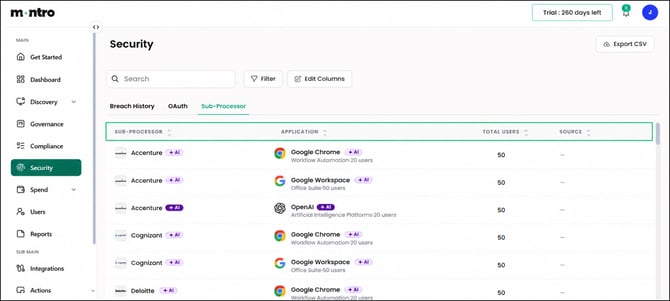
The Sub-Processor tab shows the third-party organisations your vendors use to deliver their services. Each row represents one sub-processor relationship: a named third party connected to one of your applications.
This matters because data does not stay with your primary vendor. When your organisation uses an application, personal data may flow to each of the sub-processors that the vendor relies on. Understanding this chain is a requirement under GDPR Article 28 and relevant to your NIS2 and DORA supply chain obligations.
Each row in the table shows:
- Sub-Processor - the name of the third-party organisation, with an AI badge where the sub-processor provides AI services.
- Application - the application in your estate that uses this sub-processor. A single sub-processor may appear multiple times if used by more than one of your applications.
- Total Users - the number of users associated with the application connected to this sub-processor.
- Source - where the sub-processor information was obtained.
|
Tip Use the Sub-Processor tab alongside the GDPR RoPA. The RoPA tab in Compliance shows sub-processor counts per application (for example, HubSpot shows 36). The Sub-Processor tab here shows you exactly who those organisations are, which helps when completing the Recipients field in your RoPA. |
How Security Connects to the Rest of Montro
| Connection | What it means in practice |
| Security → Compliance | Breach data and OAuth risk inform your NIS2 Supply Chain register. Sub-processor data feeds into your GDPR RoPA. |
| Security → Discovery | Security signals are drawn from your live discovered application estate - only applications your users are actually using appear here. |
| Security → Users | The OAuth tab links directly to individual users, so you can identify who has authorised which third-party connections. |
Best Practices
- Check Breach History regularly. New breaches are added as they are disclosed. Use Nudge as soon as a breach appears that affects applications with active users in your organisation.
- Treat any unsanctioned application in the OAuth tab with a High risk rating as a priority. Applications not covered by a corporate agreement but holding ongoing OAuth access represent uncontrolled third-party exposure.
- Use the Sub-Processor tab when completing your GDPR RoPA, it gives you the specific names behind the counts shown in the Compliance module.
- Export CSV before key audit dates to keep a point-in-time record of your security posture.