
Overview
Purpose
The Slack Integration enables organisations to securely connect their Slack workspace with Montro.
Once connected, Montro automatically synchronises supported Slack workspace information, including users, workspace subscription details, user-to-subscription mappings, administrator and owner roles, guest account information, and available two-factor authentication (2FA) status into the Montro platform.
This integration provides organisations with centralised visibility into Slack users, subscription information, user access, and security-related information within Montro.
The Slack integration operates with Read-only access, allowing Montro to securely retrieve and synchronise supported workspace information without making administrative changes to the connected Slack workspace.
STEP 1: Sign in to Montro
Log in to your Montro account using your credentials.
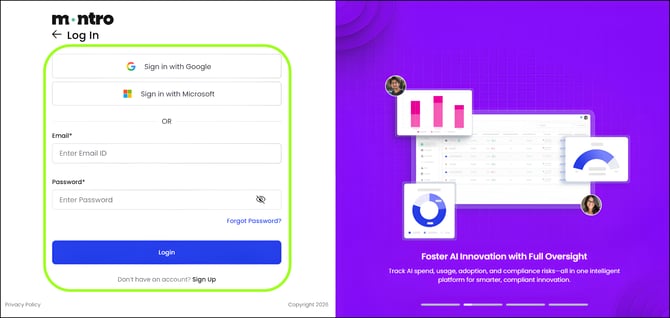 Figure 1 - Montro sign-in screen
STEP 2 - Navigate to the Integrations Section
From the left navigation menu, select Integrations, then locate the Slack integration.
Click Connect to begin the integration process.
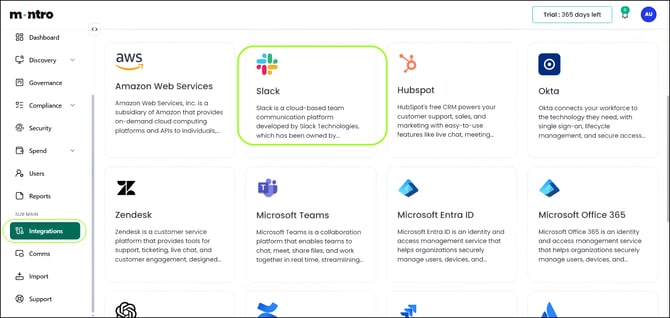 Figure 2 - Integrations section with Slack connector
STEP 3 - Configure the Slack Integration
After clicking Connect on the Slack integration, the Connect Slack side panel will appear.
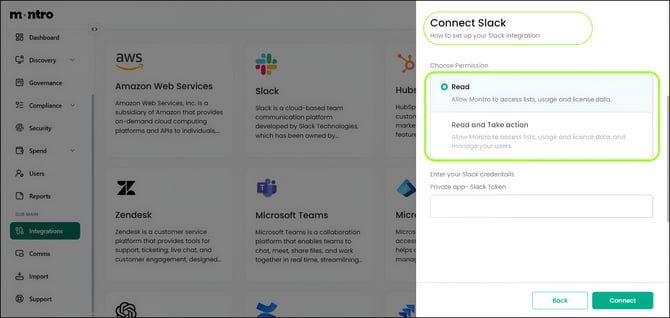 Figure 3 - Connect Slack panel
The side panel allows you to review the permission level and provide the required connection information for the Slack integration.
The Slack integration currently supports Read-only access.
Read
Grants Montro read-only access to supported information within your Slack workspace. This permission allows Montro to securely synchronise Slack workspace data without making administrative changes to your connected Slack environment.
Provide the Private App - Slack Token
In the Private app – Slack Token field, enter the Slack token generated for the Slack workspace you want to connect.
The token is used by Montro to validate access to the Slack workspace and synchronise supported workspace information.
After providing the required Slack token and reviewing the selected permission, click Connect to continue.
Once the connection details are successfully validated, Montro establishes the Slack integration and begins synchronising the supported workspace resources.
Technical Details - Permission Model
The Slack integration operates with Read-only access and uses the provided Slack token to securely access supported Slack workspace resources. The token must provide the permissions required by Montro for workspace and user synchronisation.
Required Slack Permissions
| Permission | Description |
| users:read | Allows Montro to retrieve workspace members and supported user profile information. |
| users:read.email | Allows Montro to retrieve member email addresses required for user synchronisation. |
| team.billing:read | Allows Montro to retrieve workspace plan information used for subscription synchronisation. |
| team:read | Provides access to supported workspace-level information. |
Token Validation
Before establishing the integration, Montro validates the provided Slack token to confirm that it can successfully authenticate with the Slack workspace. If token validation is successful, the integration is saved and the synchronisation process can proceed.
Supported Access
The granted Slack permissions enable Montro to synchronise supported information including:
- Workspace users
- User profile information
- User email addresses
- Workspace subscription/plan information
- Administrator and Owner indicators
- Guest account information
- Available two-factor authentication (2FA) information
Security Notes
- The Slack integration currently operates with Read-only access.
- The provided Slack token must contain the permissions required for synchronisation.
- The Slack token is used for API authentication and should be treated as a sensitive credential.
- Slack passwords are not required by Montro for this connection.
- All communication between Montro and Slack services is secured using HTTPS (TLS).
- The Slack integration does not currently provide Read and Take Action capabilities.
STEP 4 - Verify Synchronisation
After successfully configuring and connecting the Slack integration, Montro automatically starts the synchronisation process.
Once the synchronisation is completed successfully, a Successfully Synced confirmation pop-up is displayed, indicating that the Slack integration has been completed successfully.
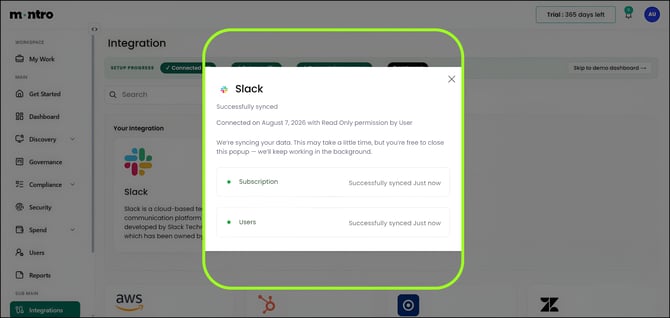 Figure 4 - Successfully Synced confirmation
The pop-up displays the connection details, including the connection date, Read Only permission, and the synchronisation status of the supported Slack resources.
The following resources are displayed:
- Subscription – Displays the synchronisation status of the Slack workspace subscription information.
- Users – Displays the synchronisation status of Slack workspace users.
When synchronisation is completed, each resource is marked as Successfully synced.
The synchronisation continues in the background, so the pop-up can be closed without interrupting the process.
| NOTE: Synchronisation may take some time depending on the amount of data available in the connected Slack workspace. |
Technical Details - Synchronisation Process
After the Slack integration is successfully connected, Montro uses the authorised Slack token to retrieve supported workspace information through Slack APIs. The synchronised information is processed and stored within Montro for use across the relevant platform modules.
Resources Synchronised
| Resource | Description |
| Subscription | Synchronises the connected Slack workspace plan and associated subscription information. |
| Users | Synchronises eligible Slack workspace members and supported user information. |
In addition to the primary resources displayed in the synchronisation pop-up, supported user information may include:
- User profile information
- Email address
- Administrator and Owner indicators
- Guest or restricted-user information
- Available two-factor authentication (2FA) status
Slack APIs Used for Synchronisation
| Slack API Method | Purpose |
| users.list | Retrieves eligible Slack workspace members and supported user profile information. |
| team.billing.info | Retrieves Slack workspace plan information used for subscription synchronisation. |
User Synchronisation Behaviour
During synchronisation, Montro imports eligible Slack workspace members. The following account types are excluded from the synchronised user inventory:
- Deleted Slack accounts
- Bot accounts
- Slack application users
- Members without an available email address
This filtering ensures that the synchronised user inventory contains relevant organisational user accounts.
Synchronisation Status
| Status | Description |
| Successfully synced | The resource has been synchronised successfully. |
| Synchronising | The resource synchronisation is currently in progress. |
| Failed | The resource could not be synchronised successfully. |
STEP 5 - View Synced Applications
After the Slack integration and synchronisation are completed successfully, navigate to:
Discovery → All Apps
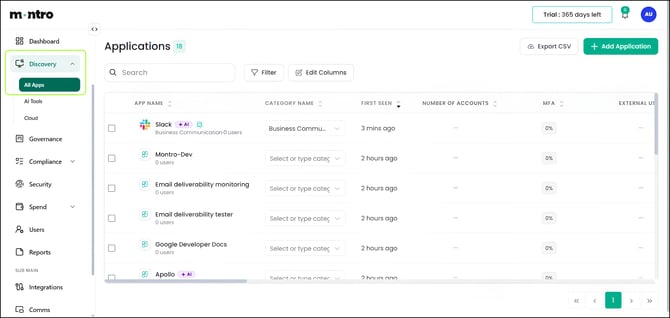 Figure 5 - All Apps: Slack application
The Applications page displays Slack as an application associated with the connected workspace.
The synchronised application record provides centralised visibility into Slack within Montro and may include relevant application and user-related information. The application record may display details such as:
- Application Name
- Category
- Number of Accounts
- First Seen
- First User
- MFA Status
- External Users
- Source
- Other available application details
| NOTE: The information displayed for Slack depends on the data available from the connected workspace and the information successfully synchronised into Montro. |
STEP 6 - View Imported Subscriptions
After the Slack integration and synchronisation are completed successfully, navigate to:
Spend → Subscriptions
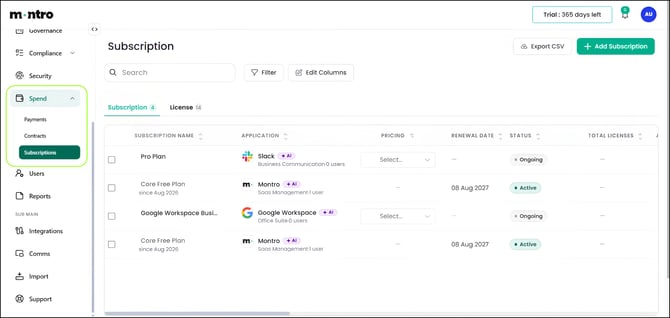 Figure 6 - Subscriptions page
The Subscriptions page displays the subscription information synchronised from the connected Slack workspace.
The Slack subscription is associated with the corresponding Slack application in Montro, providing centralised visibility into the workspace plan and associated users. The subscription record may include details such as:
- Application
- Subscription Name
- Start Date
- End Date
- Pricing
- Cost
- Number of Seats
- Other available subscription details
|
NOTE: The subscription information displayed in Montro depends on the plan information available from the connected Slack workspace. Some subscription fields may not be provided by Slack and may therefore be unavailable or maintained separately within Montro. |
STEP 7 - View Imported Licences
After the Slack integration and synchronisation are completed successfully, navigate to:
Spend → Subscriptions → Licence
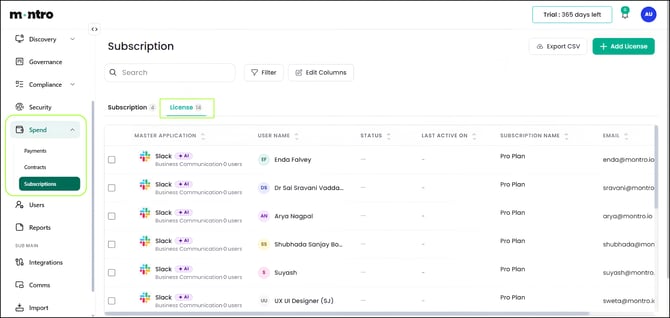 Figure 7 - Licence page
The Licence tab displays the Slack users associated with the synchronised Slack workspace subscription. This provides centralised visibility into the relationship between the Slack application, synchronised users, and the corresponding workspace subscription within Montro.
Each licence record may include information such as:
- Master Application
- User Name
- Status
- Subscription Name
- Email Address
- Other available licence details
|
NOTE: The licence information displayed in Montro is based on the eligible users and subscription information synchronised from the connected Slack workspace. |
STEP 8 - View Imported Users
After the Slack integration and synchronisation are completed successfully, navigate to:
Users → Employees
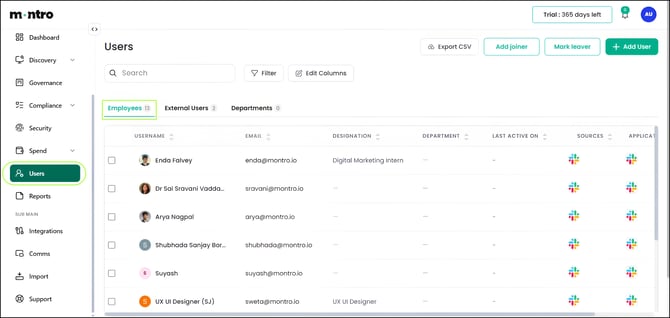 Figure 8 - Employees: imported users
The Employees page displays eligible users synchronised from the connected Slack workspace. This provides administrators with centralised visibility into Slack users and their available profile, role, and security-related information within Montro.
Each synchronised user may include information such as:
- User Name
- Email Address
- Designation / Job Title
- Administrator / Owner Status
- Guest Account Status
- Source
- Associated Application
| NOTE: The user information displayed in Montro depends on the information available for each member within the connected Slack workspace. |
STEP 9 - Disconnect the Integration
If you need to disable the Slack integration, go to Integrations, locate the Slack connector, and select Disconnect.
Navigation: Integrations → Slack → Disconnect
Once disconnected, Montro stops synchronising data from your Slack workspace, and the previously synchronised token is no longer used to retrieve information.
| NOTE: Data previously synchronised into Montro remains visible after the integration is disconnected. It will not be updated further until the integration is reconnected with a valid Slack token. |
Frequently Asked Questions
This section provides answers to commonly asked questions about the Slack integration.
Q1. What is required to connect Slack with Montro?
To connect Slack with Montro, provide a valid Private App – Slack Token with the required read permissions. The token is used to authenticate the integration and retrieve supported information from the connected Slack workspace.
Q2. What permission level does the Slack integration support?
The Slack integration currently supports Read Only access. This allows Montro to retrieve and synchronise supported Slack workspace information without making administrative changes to the connected workspace.
Q3. What permissions are required for the Slack integration?
The Slack token requires the following supported permissions:
- users:read
- users:read.email
- team.billing:read
- team:read
These permissions allow Montro to retrieve supported workspace member and subscription information.
Q4. What data is synchronised from Slack?
Montro synchronises supported Slack information including:
- Eligible workspace users
- Workspace subscription/plan information
- User-to-subscription associations
- Administrator and Owner information
- Guest or restricted-user information
- Available two-factor authentication (2FA) information
Q5. Does Montro require my Slack password?
No. Montro does not require your Slack account password for this integration. The Private App – Slack Token is used to authenticate supported Slack API requests.
Q6. Which Slack users are synchronised into Montro?
Montro synchronises eligible Slack workspace members with an available email address. The following account types are excluded from the synchronised user inventory:
- Deleted accounts
- Bot accounts
- Slack application users
- Members without an available email address
Q7. Why does the number of users in Montro differ from the number of members in Slack?
The number may differ because Montro applies filtering during synchronisation. Deleted accounts, bots, application users, and members without an available email address are excluded from the synchronised Montro user inventory.
Q8. What subscription information is synchronised from Slack?
Montro retrieves the connected Slack workspace plan and maps it to the corresponding subscription within Montro. Supported plan representations may include:
- Free Plan
- Pro Plan
- Business+ Plan
- Enterprise Grid Plan
- Enterprise Compliance Select Plan
If a retrieved plan cannot be mapped to a supported plan, it may be represented as Unknown Plan.
Q9. Can Montro assign or remove Slack licences?
No. The current Slack integration operates with Read Only access. Montro uses synchronised workspace user and plan information to provide subscription and licence/seat visibility but does not assign or remove Slack licences or workspace seats.
Q10. Does Montro make changes to my Slack workspace?
No. The current Slack integration retrieves supported information using Read Only access and does not create, modify, deactivate, or delete Slack users or modify workspace subscription settings.
Q11. What happens if the Slack token is invalid or revoked?
If the provided Slack token is invalid, revoked, or no longer provides the required access, Montro may be unable to synchronise information from the connected workspace. A valid token with the required permissions must be provided to restore synchronisation.
Q12. How long does the initial synchronisation take?
The synchronisation time may vary depending on the number of eligible users and the amount of supported information available within the connected Slack workspace. The synchronisation continues in the background while Montro processes the supported resources.
Q13. When will changes made in Slack appear in Montro?
Changes to supported Slack workspace information are reflected in Montro after a subsequent successful synchronisation. This may include changes to eligible users, profile information, roles, guest status, available 2FA information, and supported workspace plan information.
Q14. Where can I view synchronised Slack information in Montro?
After synchronisation is completed, Slack information can be viewed in the following sections:
- Discovery → All Apps – Slack application and associated account visibility
- Spend → Subscriptions – Slack workspace subscription information
- Spend → Subscriptions → Licence – User-to-subscription/licence visibility
- Users → Employees – Synchronised Slack users
Q15. Is the Private App Slack Token sensitive?
Yes. The Slack token should be treated as a sensitive credential because it is used to authenticate API requests to the connected Slack workspace. The token should only be provided through the designated Private app – Slack Token field and should not be shared publicly.
Q16. Can I disconnect the integration?
Yes. The integration can be disconnected at any time from the Integrations section. Once disconnected, Montro will no longer synchronise data until the integration is reconnected. See Step 9 for instructions.
Q17. What happens if some Slack users are not visible in Montro?
If expected users are not visible:
- Ensure synchronisation has completed successfully.
- Verify that the user has an email address available in Slack.
- Confirm that the account is not deleted.
- Confirm that the account is not a bot or Slack application user.
- Verify that the provided Slack token has the required user read permissions.