
|
Overview The Subscriptions page shows all recurring software services your organisation has signed up for. It has two tabs: Subscription, which gives you a plan-level view of every active service with costs, renewal dates, and licence counts; and License, which shows you exactly which users hold licences under each subscription. Together they give you a complete picture of what you are committed to and whether you are getting value from it. |
Accessing Subscriptions
In the left-hand navigation, click Spend to expand it, then click Subscriptions.
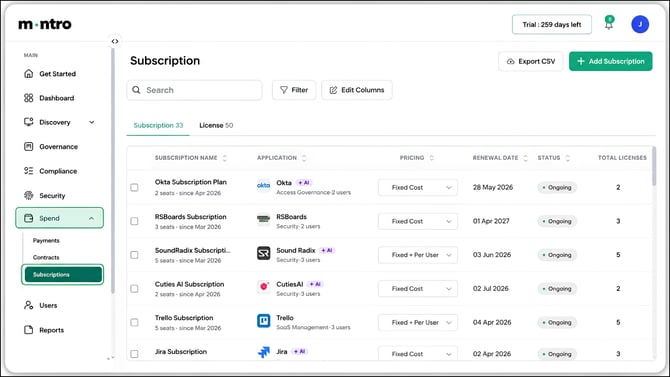
At the top right you will find Export CSV and + Add Subscription. The page opens on the Subscription tab by default.
Subscription Tab
The Subscription tab lists every plan your organisation is paying for. Each row is one subscription. The table is wide - the first columns you see cover the key details, and scrolling right reveals cost, billing, and licence breakdown data.
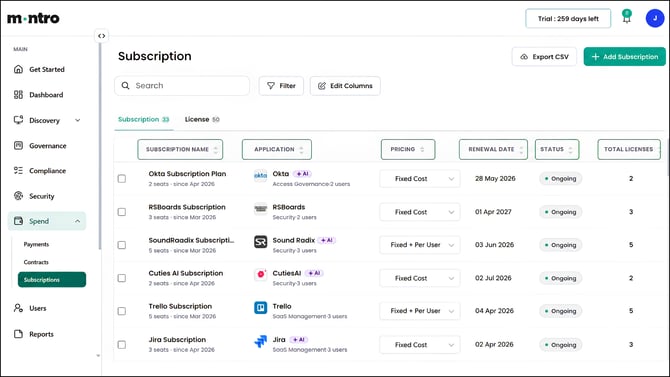
The columns you will see first
Subscription Name - the name of the plan, with the seat count and start date shown underneath. This is usually how the subscription appears on your invoice. A name like Okta Subscription Plan with 2 seats · since Apr 2026 tells you the plan, how many people it covers, and when it started.
Application - the tool this subscription is for, shown with its logo, category, and user count. If you see a +AI badge, the tool has AI capabilities. Every subscription should be linked to an application, this is what connects your spend data to the rest of Montro.
Pricing - the pricing model for this subscription. Fixed Cost means you pay a flat amount regardless of usage. Fixed + Per User means there is a base cost plus a per-seat charge, worth knowing when you are deciding whether to add or remove users.
Renewal Date - when the next renewal is due. Keep a close eye on this column. A renewal date that has passed without action on an auto-renewing subscription means you have already been committed to another term.
Status - Ongoing means the subscription is active. If a subscription is no longer in use, update the status rather than leaving it sitting in the list, stale records make the list harder to manage.
Total Licenses - the total number of licences included in this subscription. Compare this against Assigned Licenses (further right) to see whether you are using all the seats you are paying for.
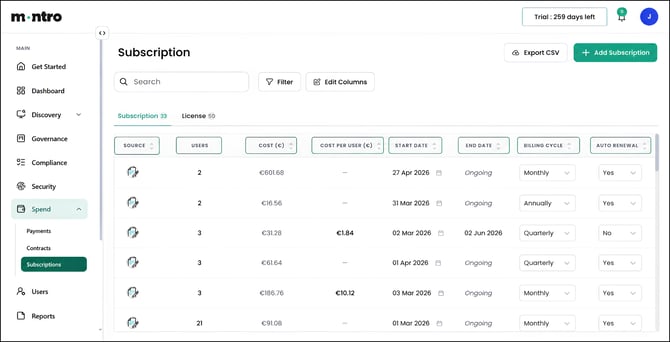
Scroll right to see
Source - where this subscription record came from, shown as an icon.
Users - the number of users currently assigned to this subscription.
Cost ($) - the total cost of this subscription. For Fixed + Per User plans, this reflects the full amount at the current seat count.
Cost Per User ($) - the per-seat cost where applicable. Useful when you are evaluating whether to scale a subscription up or down.
Start Date - when the subscription began.
End Date - when the subscription ends, if it has a fixed term. Ongoing appears here for rolling subscriptions with no fixed end date.
Billing Cycle - how often you are billed: Monthly, Quarterly, or Annually. Annual billing is usually cheaper per month but commits you for longer, worth factoring in when reviewing whether a tool is still earning its place.
Auto Renewal - Yes or No. A Yes here means the subscription will renew automatically when it reaches its renewal date, without any action from your team. If you want to cancel or renegotiate, you need to act before that date.
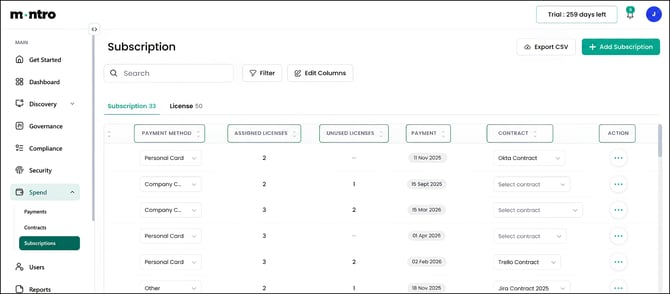
Further right
Payment Method - how this subscription is being paid: Personal Card, Company Card, or Other. Personal Card entries are worth reviewing, subscriptions paid from personal cards may not have gone through any procurement process.
Assigned Licenses - how many of the total licences have been allocated to specific users. If this is lower than Total Licenses, you are paying for seats that are not assigned to anyone.
Unused Licenses - licences that are paid for but sitting idle. This is one of the most direct indicators of spend waste, every unused licence is money you could reclaim by downsizing the plan at the next renewal.
Payment - the date of the last payment made against this subscription.
Contract - the contract this subscription is governed by, selectable from a dropdown. Linking subscriptions to their contracts keeps your records connected and makes it easier to reconcile spend at renewal time. If this shows Select contract, it has not been linked yet.
Action - the (…) menu for editing or deleting the subscription record.
| Tip - compare Total Licenses against Assigned Licenses and Unused Licenses for every subscription. If Unused Licenses are consistently high across multiple tools, those are your clearest opportunities to reduce costs at the next renewal. You do not need to cancel, simply downsize the plan to match actual usage. |
License Tab
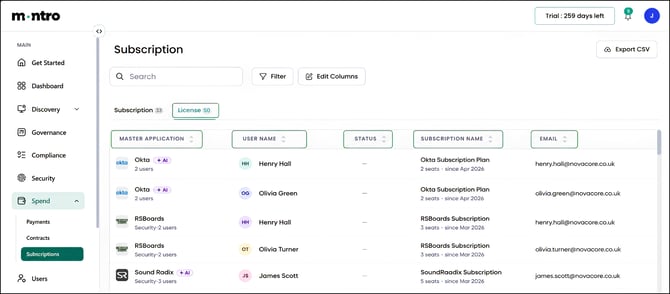
The License tab gives you a per-user view of licence assignments across all subscriptions. Where the Subscription tab shows plans and totals, the License tab shows you exactly who holds a licence under each plan and under which email address.
Each row represents one user’s licence assignment and shows:
Master Application - the application this licence belongs to, shown with its logo and user count.
User Name - the individual user this licence is assigned to, shown with their avatar initials and full name.
Status - the current status of the licence assignment.
Subscription Name - the specific plan this licence falls under, with the seat count and start date shown below. This tells you which plan tier the user is on, which matters if your subscriptions have multiple plan levels.
Email - the email address the licence is registered to. If this is a personal email rather than a company email, the licence may not be under your organisation’s corporate account, worth checking.
| Tip - use the License tab after an employee leaves. When someone offboards, their licences do not automatically get reclaimed. Find their name in this tab, identify every subscription they hold a licence under, and either reassign or remove those licences. Leaving them assigned means you continue paying for access that is no longer needed. |
Adding a Subscription
Click + Add Subscription at the top right to create a new record. A panel slides in from the right with the following fields:
Subscription Name - give it a clear name that matches how it appears on your invoice, for example Slack Pro or HubSpot Marketing Hub Starter.
Application - link it to the correct application from the dropdown. This is a required field.
Total Licenses - enter the total number of seats included in the plan.
Start Date - when the subscription started or is starting.
Pricing - select Fixed Cost or Fixed + Per User depending on how the plan is structured.
Billing Cycle - Monthly, Quarterly, or Annually.
Auto-renewal - record whether the subscription renews automatically.
User - assign the subscription to the person who manages or owns it.
Payment Method - record how it is being paid.
Description - any additional notes about the subscription.
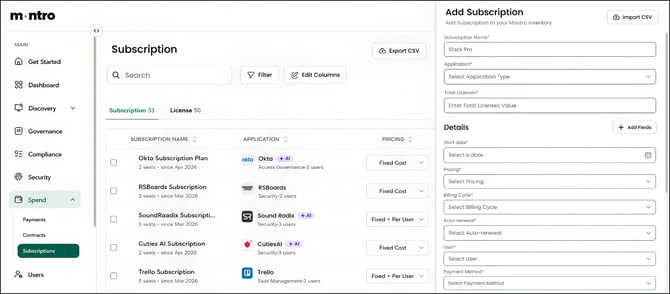
If you have multiple subscriptions to add at once, use the Import CSV button at the top right of the panel to upload them in bulk rather than entering them one by one.
Best Practices
- Check Unused Licenses regularly across your subscriptions and use that data at renewal time to right-size plans. Unused seats are the fastest way to reduce software spend without losing any capability.
- Review the Auto Renewal column before renewal dates arrive - a subscription renewing without a review is a missed opportunity to renegotiate pricing or exit if the tool is no longer earning its place.
- Link every subscription to its governing contract using the Contract column. This keeps your spend and commitment data aligned and makes renewals easier to manage.
- After any employee offboarding, use the License tab to find and reclaim their licence assignments across all subscriptions.
- Flag any subscriptions paid via Personal Card for review, these may not have gone through procurement and may not have a contract in place.